Overview Page
The Overview page is the main starting point after you enter the platform.
It gives you a quick business summary of your rental activity: properties, active contracts, income, transactions to check, and emails that still need processing.
Use this page when you want to understand the current status without opening each area one by one.
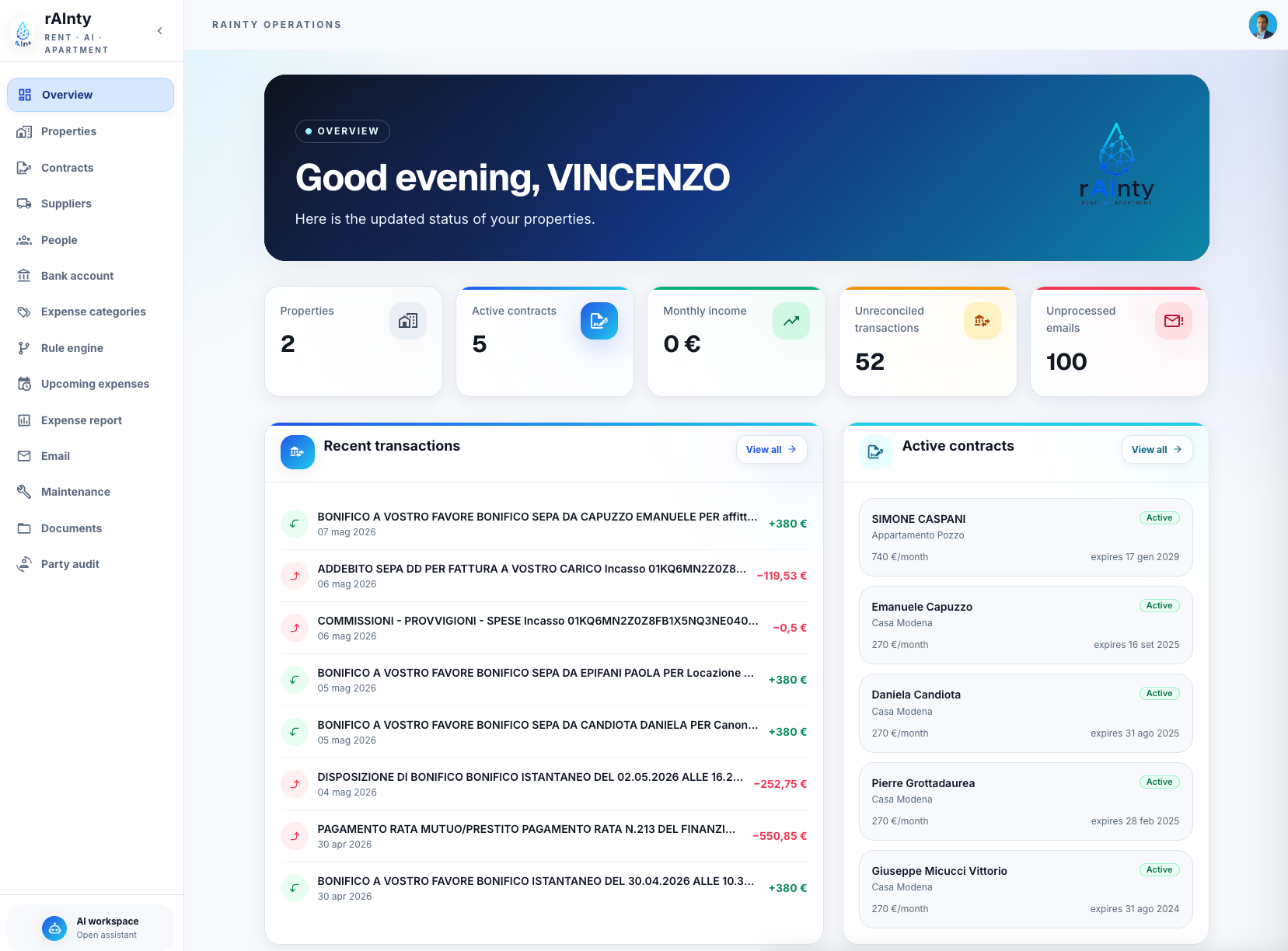
The image above shows an example of the Overview page. Your numbers, names, and records may be different, but the main areas of the page are the same.
When you arrive here
After the test registration wizard is complete, the platform asks you to continue to the Overview page.
You can also return to this page at any time by selecting Overview from the left navigation bar.
Main areas of the screen
The Overview page is divided into four main areas:
- the left navigation bar;
- the central overview content;
- the assistant entry point;
- the profile and settings area.
Each area has a different purpose.
Left navigation bar
The left navigation bar is the vertical menu on the left side of the screen.
It helps you move between the main sections of the platform.
Typical entries include:
- Overview: your starting dashboard;
- Properties: apartments and rental units;
- Contracts: rental contracts and related information;
- Suppliers: companies or people providing services;
- People: tenants, landlords, contacts, and other parties;
- Bank account: bank transactions and payment checks;
- Expense categories: categories used to organize costs;
- Rule engine: rules used to support automation;
- Upcoming expenses: future or expected costs;
- Expense report: expense summaries and reports;
- Email: email connection and imported messages;
- Maintenance: maintenance requests and interventions;
- Documents: uploaded and linked files;
- Party audit: history and checks related to parties.
You do not need to use every section immediately. Start with the areas that match your current work.
Assistant area
At the bottom of the left side, you can see the AI workspace area.
This is the entry point for the assistant.
The assistant is designed to help you ask questions about your rental information, documents, and operational status.
This guide only introduces where the assistant is located. A dedicated assistant page will explain how to use it, what questions to ask, and how to review the answers.
Profile and settings area
In the top-right corner, you can see your user icon or profile picture.
This area is used to access personal options and account-related actions.
Depending on your permissions and setup, this area may include:
- personal profile information;
- settings;
- connected services;
- account options;
- logout.
If you need to change your personal information or check your connections, start from this icon.
Central overview content
The center of the page shows the operational summary.
This is the part you will use most often to understand what is happening.
Welcome banner
At the top, the page shows a welcome message and a short status sentence.
This confirms that you are in the rental operations workspace and gives context for the information below.
Summary cards
Below the welcome banner, you see summary cards.
These cards show important numbers at a glance.
Examples include:
- number of properties;
- number of active contracts;
- monthly income;
- unreconciled transactions;
- unprocessed emails.
These numbers help you identify where attention is needed.
For example, a high number of unreconciled transactions means that some bank movements still need to be matched or reviewed.
Recent transactions
The recent transactions section shows the latest bank movements.
Each row usually includes:
- transaction description;
- date;
- amount;
- income or expense direction.
Positive amounts usually represent money received. Negative amounts usually represent payments or costs.
Use this section to quickly check whether recent rent payments or expenses are visible.
The View all action opens the full transaction area.
Active contracts
The active contracts section shows contracts that are currently active.
For each contract, you can usually see:
- tenant or contract name;
- property name;
- monthly rent;
- contract status;
- expiry date.
This helps you quickly understand which contracts are running and when they may need attention.
The View all action opens the full contracts area.
How to use the Overview page
Use the Overview page as a daily check.
A simple routine is:
- Check the summary cards.
- Look at unreconciled transactions and unprocessed emails.
- Review recent transactions.
- Check active contracts and expiry dates.
- Open the detailed section only when something needs attention.
This keeps your daily work focused and avoids searching through every page.
What to do next
After learning the Overview page, the next useful step is usually to open the section that needs attention:
- open Properties to check your apartments;
- open Contracts to review contract details;
- open Bank account to work on transactions;
- open Email to review imported messages;
- open Documents to find uploaded files.
The Overview page is not meant to replace these sections. It helps you decide where to go next.