Property Detail
The Property Detail page shows all information connected to one specific property.
You open this page by clicking a property from the Properties list.
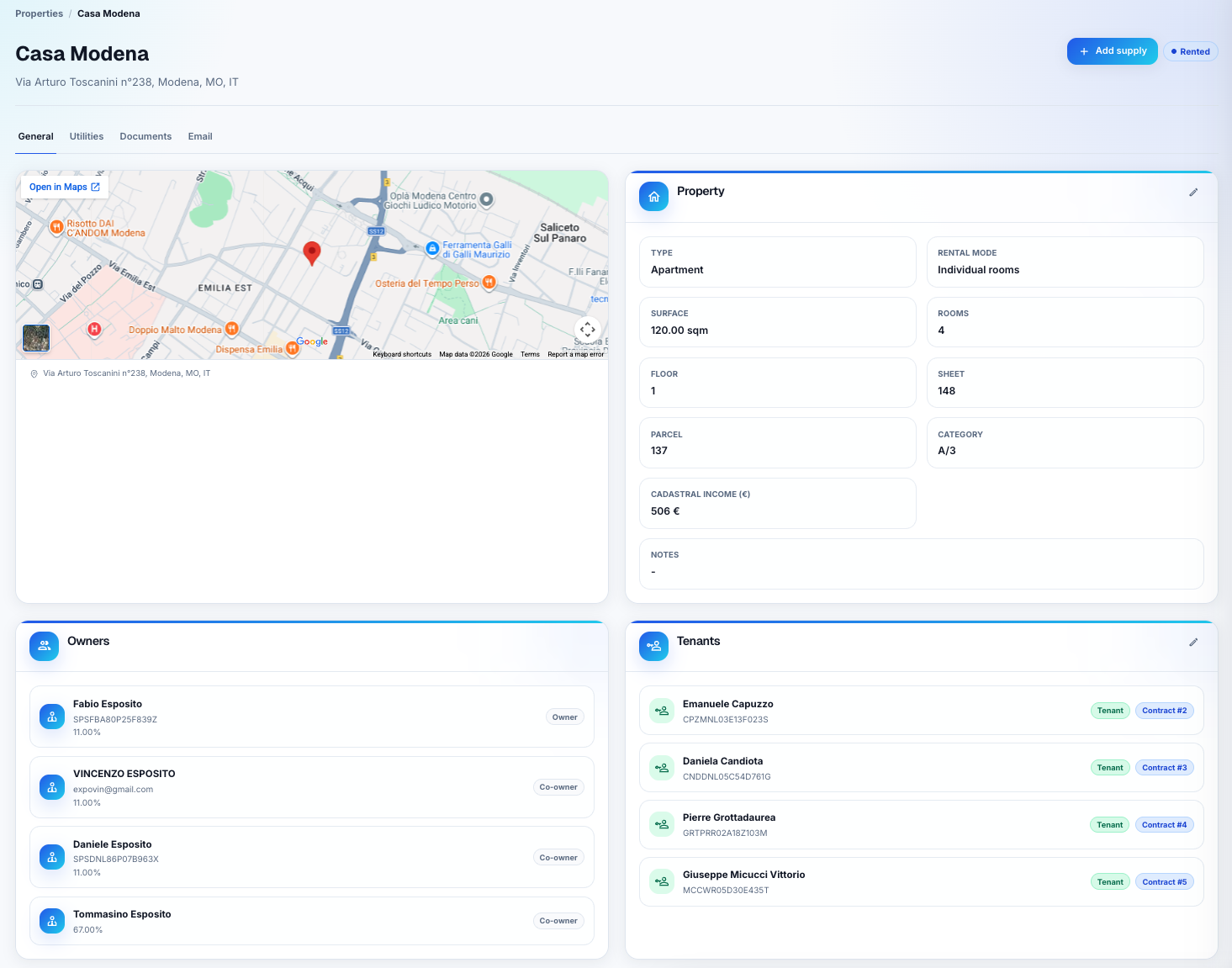
The example above shows a property detail page with the General tab selected.
Page header
At the top of the page, you can see:
- the property name;
- the property address;
- the property status;
- quick actions, such as adding a supply or editing information.
The header helps you confirm that you are working on the correct property.
Tabs
The property detail page is organized into tabs.
Tabs keep related information grouped in one place. You can move between tabs without leaving the property.
The main tabs are:
- General;
- Utilities;
- Documents;
- Email.
General tab
The General tab gives you the main view of the property.
It usually includes:
- a map or location area;
- property details;
- owners;
- tenants.
Map and address
The map area helps you identify where the property is located.
Below or near the map, you can see the property address.
This is useful when you manage several apartments and want to confirm the exact location.
Property information
The property information panel shows practical details such as:
- property type;
- rental mode;
- surface;
- number of rooms;
- floor;
- cadastral references;
- notes.
This section is useful as a quick property profile.
Owners
The Owners section lists the people who own the property.
Each owner can have a name, contact information, and ownership share.
This is helpful when a property has more than one owner.
Tenants
The Tenants section lists the people currently connected to the property through active contracts.
Each tenant entry can show the related contract, status, and other identifying information.
Use this section to quickly understand who is renting the property.
Utilities tab
The Utilities tab shows services and supplies connected to the property.
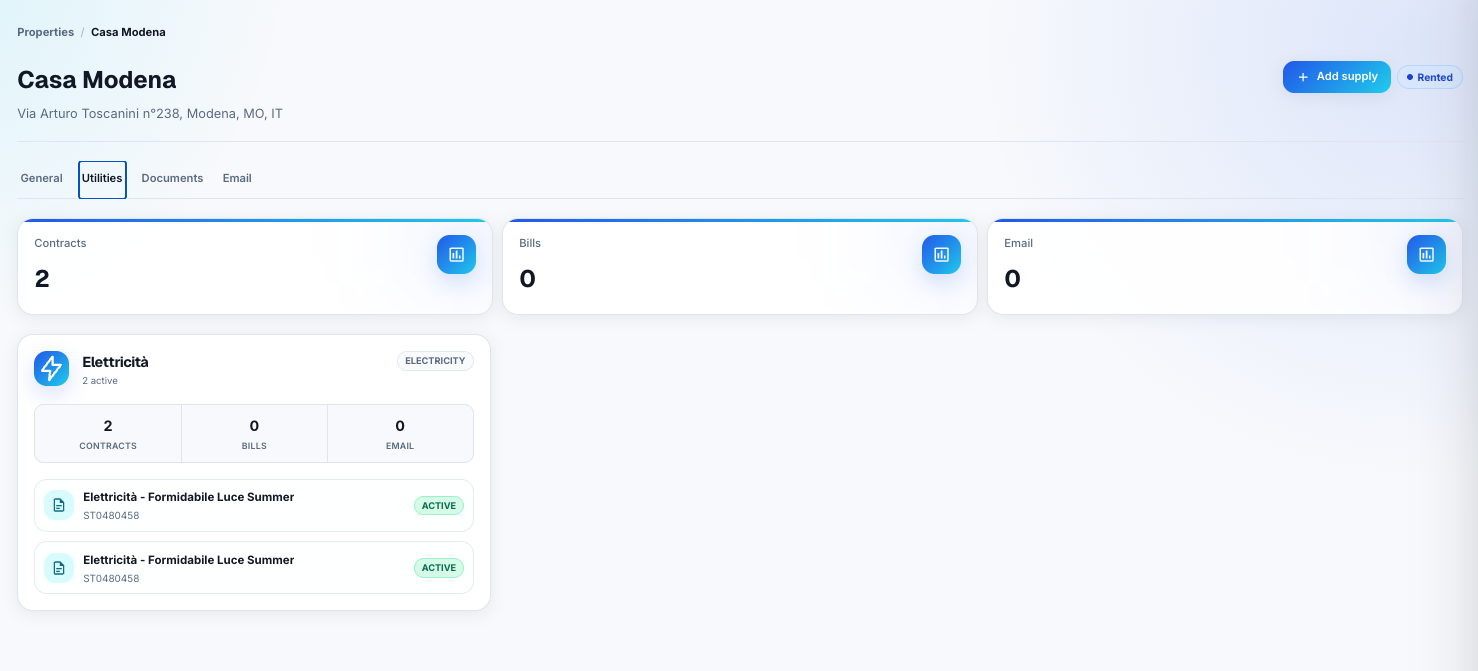
This tab is useful when you want to check electricity, gas, water, internet, or other service contracts.
Summary cards
At the top of the Utilities tab, summary cards show quick numbers such as:
- number of service contracts;
- number of bills;
- number of related emails.
These numbers help you understand whether there are active services or items that need review.
Utility groups
Services are grouped by type.
For example, electricity contracts can be shown together under an electricity section.
Inside each group, you can usually see:
- the service type;
- how many contracts are active;
- how many bills are connected;
- how many emails are linked.
Service contracts
Each service contract appears as a row or card.
It may show:
- the service name;
- the supplier or contract label;
- a reference code;
- the current status.
Use this area to check which supplies are active for the property.
Documents tab
The Documents tab contains files linked to the property.
These can include:
- property documents;
- contracts;
- cadastral documents;
- invoices;
- utility bills;
- maintenance documents;
- other files connected to the property.
Use this tab when you need to find or review a document related to the property.
Keeping documents linked to the correct property helps you avoid searching through email folders or local files.
Email tab
The Email tab shows email messages connected to the property.
Emails may be linked manually or automatically by rules.
This tab is useful when property-related communication arrives by email, such as:
- utility provider messages;
- supplier communication;
- maintenance updates;
- payment or billing messages.
Use this tab to review the communication history connected to the property.
How to use this page
A simple way to use the Property Detail page is:
- Open the property from the Properties list.
- Check the General tab to confirm the main information.
- Open Utilities to review active services.
- Open Documents when you need a file.
- Open Email when you need to review related messages.
This page is the central place for everything connected to a single property.